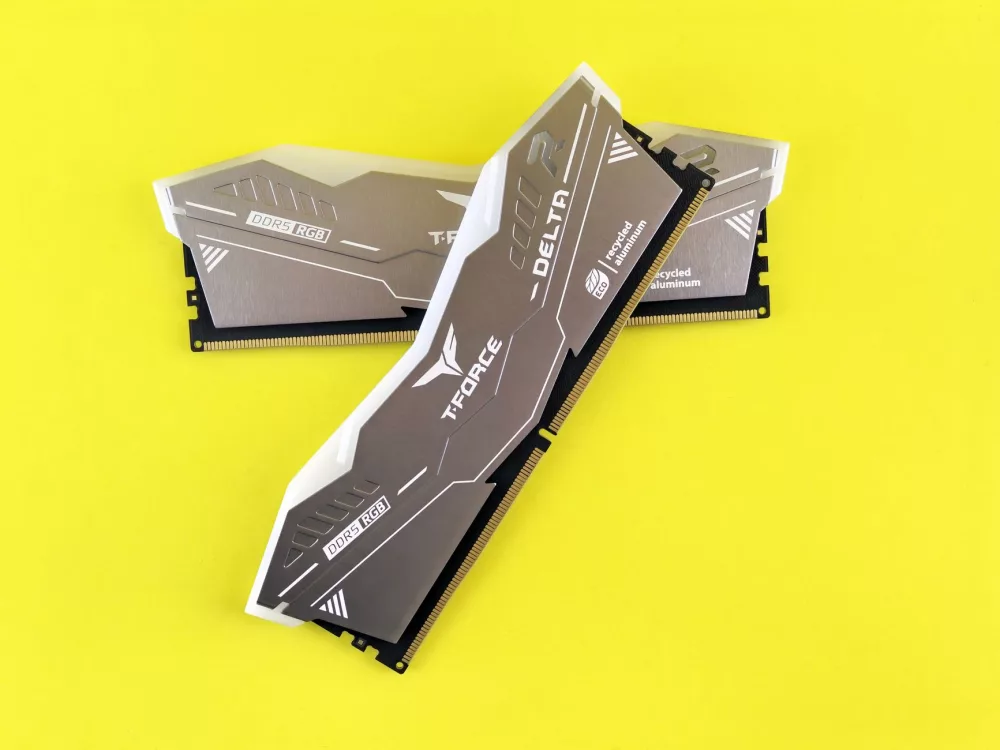
Alright, let's talk about something incredibly important for your computer's performance: PC memory, or as we usually call it, RAM. I know sometimes it feels like a really technical topic, but trust me, understanding what RAM does and how it works isn't as complicated as it seems. In simple terms, RAM – Random Access Memory – is your computer's short-term workspace. It’s where your operating system, applications, and data currently in use are stored so your CPU can access them super quickly. Think of it like a desk; the bigger your desk, the more papers, books, and tools you can have open and ready to use without having to constantly go back to the filing cabinet (your hard drive or SSD).
Why Is RAM So Critical?
You might wonder why we even need RAM when we have incredibly fast solid-state drives these days. Well, even the fastest SSDs are still significantly slower than RAM. When you open a program, like your web browser or a video game, the necessary files aren't executed directly from your storage drive. Instead, they're loaded into RAM. This allows your processor, the brain of your computer, to grab bits of data almost instantaneously, making everything feel snappy and responsive. Without enough RAM, your computer would constantly be shuffling data between your slower storage and the CPU, leading to frustrating slowdowns, stuttering, and what we often call 'lag'. It's not fun, believe me. I've experienced it, and it's a productivity killer!
A Quick Look at RAM's Evolution: From DDR to DDR5
The technology behind RAM hasn't stood still; it's been constantly evolving to meet the demands of increasingly complex software and hardware. When I think back, I remember when DDR (Double Data Rate) memory first hit the scene, offering a big jump in performance over its predecessors. It was quite revolutionary, allowing data to be transferred twice per clock cycle.
- DDR: This was the original, setting the stage for what was to come. You won't find it in modern systems anymore, but it was a workhorse in its day.
- DDR2: An improvement over DDR, offering higher clock speeds and lower power consumption. It was a solid upgrade for many years.
- DDR3: This generation brought even faster speeds and better power efficiency. For a long time, DDR3 was the standard, and many older but still capable machines might still be running it.
- DDR4: Currently, DDR4 is still very common in systems built in the last few years. It significantly increases bandwidth and reduces power consumption compared to DDR3. If you bought a PC in the last 5-7 years, chances are you've got DDR4 memory inside.
- DDR5: This is the latest and greatest, pushing boundaries with even higher speeds, greater bandwidth, and improved efficiency. It's becoming the new standard for modern high-end PCs and upcoming systems, offering substantial performance gains for demanding applications and gaming.
Each generation is not backward compatible; you can't plug a DDR4 stick into a DDR3 slot, for example. Your motherboard is designed for a specific generation of RAM, so keeping that in mind is absolutely crucial when you're looking to buy or upgrade.
Key Specifications You Need to Understand
Choosing the right RAM isn't just about picking the newest generation. There are several other specifications that truly matter. Let me break down the essentials:
Capacity: How Much Do You Really Need?
This is probably the most straightforward aspect: how many gigabytes (GB) of RAM does your system have? For most general users, 8GB is considered the absolute minimum these days. If you're just browsing the web, checking emails, and doing some light office work, 8GB will get you by. However, I’d strongly recommend going for 16GB for a much smoother experience. This is the sweet spot for many, handling multiple browser tabs, office suites, and even some moderate gaming without a hitch. For serious gamers, content creators, or professionals running demanding applications like video editing software or virtual machines, 32GB or even 64GB might be necessary. More than that, and you're typically looking at specialized workstations or servers.
Speed: It's Not Just About Clock Cycles
RAM speed is measured in megahertz (MHz) or megatransfers per second (MT/s). A higher number generally means faster data transfer. For instance, DDR4-3200 is faster than DDR4-2400. This speed impacts how quickly your CPU can fetch data from memory. While a faster CPU is generally better, having fast RAM can also make a noticeable difference, especially in CPU-intensive tasks and gaming where frame rates can see a bump. Don't forget to check your motherboard's specifications; it'll have a maximum supported RAM speed.
Latency: The Quicker, The Better
Latency, often indicated by a CAS Latency (CL) number (e.g., CL16, CL18), represents the delay in clock cycles between when the CPU requests data from RAM and when the RAM provides it. A lower CL number means lower latency, which is better. So, DDR4-3200 CL16 is generally superior to DDR4-3200 CL18, assuming all other factors are equal. It's an important detail, especially for those looking to squeeze every bit of performance out of their system.
Form Factors: DIMM vs. SODIMM
This simply refers to the physical size of the RAM stick. DIMM (Dual In-line Memory Module) is what you'll find in desktop computers. They are longer modules. SODIMM (Small Outline Dual In-line Memory Module) is smaller and designed for laptops and other compact devices where space is at a premium. You can't mix and match these, obviously.
How RAM and CPU Work Together
Imagine your CPU is a chef in a kitchen, and your RAM is the counter space where all the ingredients are laid out, ready for use. Your storage drive (SSD/HDD) is the pantry where all the ingredients are kept. When the chef (CPU) needs an ingredient (data) for a recipe (program instruction), they first check the counter (RAM). If it's there, great! They grab it and get to work immediately. If not, they have to go to the pantry (storage drive), find the ingredient, bring it back to the counter, and then use it. This trip to the pantry takes a lot more time. The more counter space (RAM) you have, and the faster you can retrieve ingredients from it, the more efficiently your chef (CPU) can cook (process tasks). It's a pretty neat system, really.
Thinking About a RAM Upgrade?
If your computer feels sluggish, an RAM upgrade is often one of the most effective and affordable ways to breathe new life into it. Before you jump in, here's what I'd consider:
- Check your current RAM: Use a tool like Task Manager (Windows) or Activity Monitor (macOS) to see how much RAM you currently have and how much is being used during your typical workload. If you're consistently hitting 90% or more, an upgrade is probably a good idea.
- Identify your motherboard's capabilities: This is absolutely essential. You need to know what type of RAM (DDR3, DDR4, DDR5), what maximum speed, and what maximum capacity your motherboard supports. Your PC's manual or the manufacturer's website will have this info.
- Consider dual-channel memory: Most motherboards have two or four RAM slots. Installing RAM in pairs (e.g., two 8GB sticks instead of one 16GB stick) often enables dual-channel mode, which can significantly improve performance by allowing the CPU to access memory simultaneously from two modules. It's a common performance boost that many people overlook.
- Don't overbuy: While more RAM is nice, there's a point of diminishing returns. Going from 16GB to 32GB might be a huge leap for a video editor, but for someone only browsing, it might not offer a noticeable difference in day-to-day use. Your budget might be better spent elsewhere.
Installing RAM is one of the simpler hardware upgrades you can do. Just make sure your system is powered off and unplugged, then open your case, unclip the old modules, and firmly press in the new ones until they click into place. It’s pretty satisfying, actually!
Some Things I've Learned About RAM
I've seen people get hung up on tiny differences in RAM specs, and honestly, sometimes it's not worth the stress. For most people, having enough capacity and decent speed is way more important than chasing the absolute lowest latency if it means spending a fortune. Also, remember those XMP (Extreme Memory Profile) settings in your BIOS? If your RAM is rated for a higher speed than your motherboard defaults to, you'll need to enable XMP to get those advertised speeds. Otherwise, your fancy fast RAM might just be running slower than it could be, which is a bit of a waste, isn't it?
Ultimately, PC memory is a foundational component that directly impacts your computer's responsiveness and overall ability to handle tasks. Investing in adequate and appropriate RAM is one of the smartest things you can do to ensure a smooth, enjoyable computing experience. It truly makes a world of difference in how your system feels to use, from everyday tasks to intense gaming sessions or heavy professional workloads. Don't underestimate its power, and do a little homework before you buy; your PC will thank you for it!